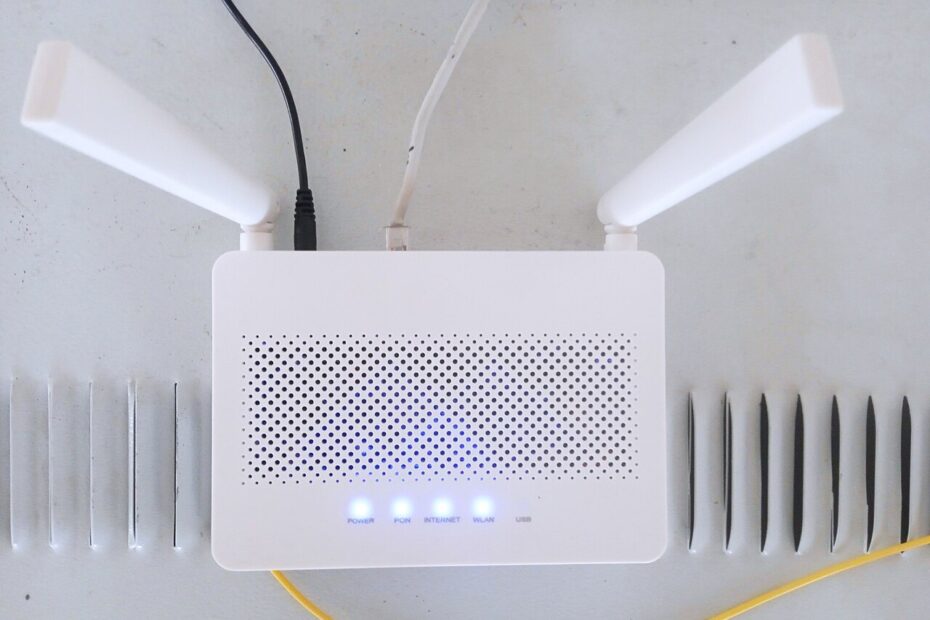
An unreliable home connection can have several causes: the internet service, the router, the wireless signal, a particular device, or the application you are using. Buying new equipment before distinguishing those causes can leave you with the same problem and another setup task. Start with a few repeatable observations. You want to learn where the failure begins, then make the smallest change that addresses that part of the connection.
Describe the failure in ordinary terms
Write down what happens, where it happens, and which devices are affected. A video call that freezes in the back bedroom is different from every device losing internet at once. Note whether the problem occurs at particular times or while someone is uploading large files. Avoid changing several settings immediately. A short record gives you something concrete to compare after each adjustment.
Try a second device in the same location and the original device near the router. If possible, compare a wired connection using Ethernet. A reliable wired connection alongside unreliable wireless access points toward a different investigation from a wired connection that also fails. These tests are clues rather than definitive proof, but they help you describe the issue accurately to your internet provider or equipment support team.
Give the router a fair location
Place the router in an open, elevated position where practical, away from enclosed cabinets and large metal obstructions. Think about the rooms that need service rather than simply hiding the equipment beside the incoming cable. A router at one extreme of the home may struggle to serve the opposite end. Follow the manufacturer’s ventilation and placement guidance, especially if the equipment becomes warm in use.
Test a temporary position before arranging permanent cable routes. Move the router only as its connections safely allow, then repeat your ordinary task in the difficult room. Do not balance equipment precariously or run a cable where someone can trip. If moving the main router is impractical, the experiment still helps you decide whether another access point or a better located connection would address the coverage problem.
Update before experimenting with advanced controls
Check the router manufacturer’s official instructions for firmware updates and enable automatic updates when supported and appropriate. Also update the devices that struggle to connect. Apple’s router guidance recommends current firmware and provides settings intended to support security and reliability. Record your current configuration or use the router’s backup feature before changing it, so a failed experiment does not become a lengthy reconstruction.
Review security settings as part of maintenance. Use a modern supported security mode, such as WPA3 or an appropriate compatibility mode for your equipment. Avoid turning security off to solve a connection problem. The FTC’s home network guidance also recommends protecting the router itself. Keep its administrator credentials distinct from the password guests use to join Wi-Fi, and use the provider’s documented method to manage the device.
Understand bands without turning them into a guessing game
Routers and client devices may support different frequency bands. A connection that works well close to the router may behave differently through several walls. Rather than assuming a band with a higher number is always the right answer, test your actual device and location. Leave automatic selection enabled where the manufacturer recommends it unless a specific compatibility issue gives you a reason to investigate further.
If you change network names or band settings, consider the whole household. Printers, speakers, and connected appliances may need reconnecting, and some products have particular setup requirements. Keep a record of the original settings and change one item at a time. Randomly switching channels, widths, names, and security modes together makes it difficult to know which change helped or which one introduced a new problem.
Use additional equipment for a demonstrated gap
An additional access point or mesh system can help extend coverage when placement alone is insufficient, but the connection between units matters. A wireless node placed deep inside a dead zone may have a weak connection back to the rest of the network. Follow the system’s placement guidance and use its connection checks. If your home supports a suitable wired connection between access points, investigate that option before assuming every link must be wireless.
Check whether existing equipment already performs the same routing functions before adding another router. A replacement or expansion can create an unnecessarily complicated network when installed without understanding the provider’s gateway. Consult the manuals or provider about the appropriate operating mode. Keep the layout simple enough that you can explain which device connects to the internet and which devices provide wireless coverage around the home.
Reduce avoidable contention and verify the result
For equipment that stays in one place, such as a desktop computer or television, a practical Ethernet connection can remove that device’s dependence on wireless coverage. Schedule large transfers away from important calls when convenient. If your router offers traffic management features, read what they actually do before enabling them. A setting labeled gaming or boost should not substitute for confirming the cause of the problem.
After each meaningful change, repeat the same real task in the same location and note the result. A successful speed test near the router does not prove that an upstairs call is stable. If failures persist across wired and wireless devices, contact the provider with your observations, times, and equipment details. Reliable Wi-Fi comes from matching the remedy to the failure, then checking that everyday use has improved.
Sources
- Apple: Recommended settings for Wi-Fi routers and access points
- FTC: How to secure your home Wi-Fi network
Image: Wi-fi router by Solijon Solayev / Wikimedia Commons. CC BY-SA 4.0. Resized and compressed.
